
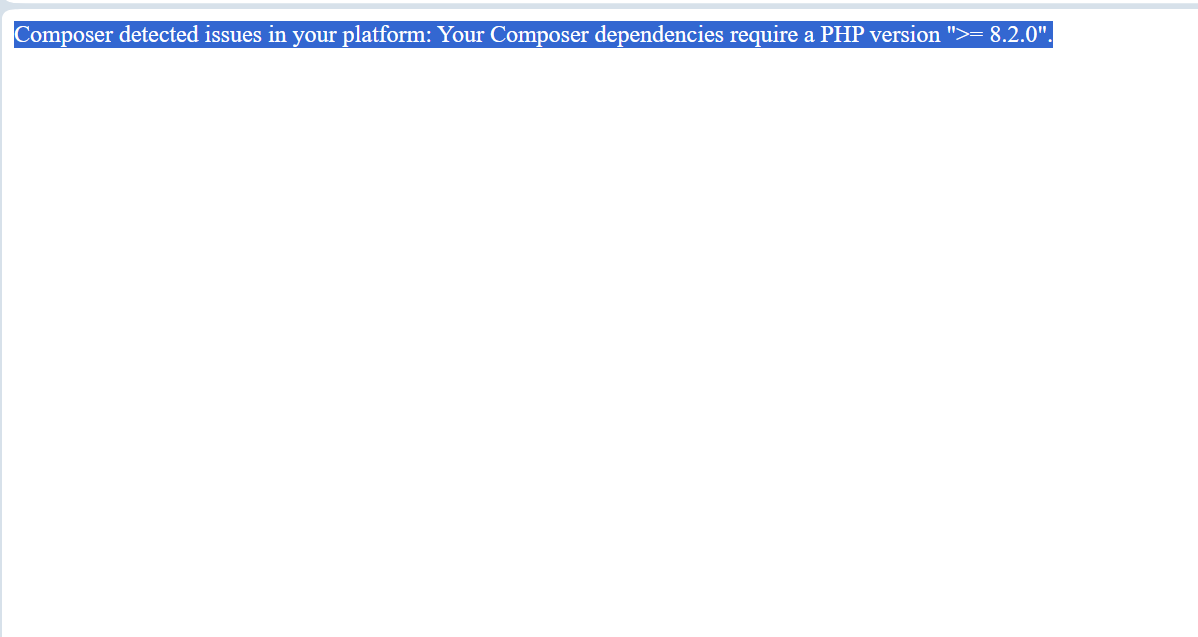



If you’re seeing this error while trying to install or update a PHP application, you’re not alone. This usually happens when your hosting account is running an older PHP version, while the app or plugin you’re working with needs something newer. Most modern tools now require PHP 8.2 or 8.3, so updating your PHP version will fix the problem instantly.
The good news? You can fix this easily using cPanel’s MultiPHP Manager.
In this guide, you’ll learn:
- Why this error appears
- How to check your current PHP version
- How to update PHP in cPanel
- A step-by-step visual walkthrough using Wizardshot
- What to do after upgrading PHP
Why This Error Happens
Composer validates your server environment before installing dependencies. When it detects a PHP version lower than what your composer.json requires, it stops the process to prevent compatibility issues.
For example:
- Your server may be running PHP 7.4 or 8.0
- Your application or plugin may require PHP 8.2+
- Composer responds with the error and halts installation
Upgrading your PHP version resolves the issue immediately.
How to Update Your PHP Version in cPanel (Step-by-Step)
Follow these steps to switch your domain to PHP 8.2 or PHP 8.3 or later.
1. Log in to cPanel
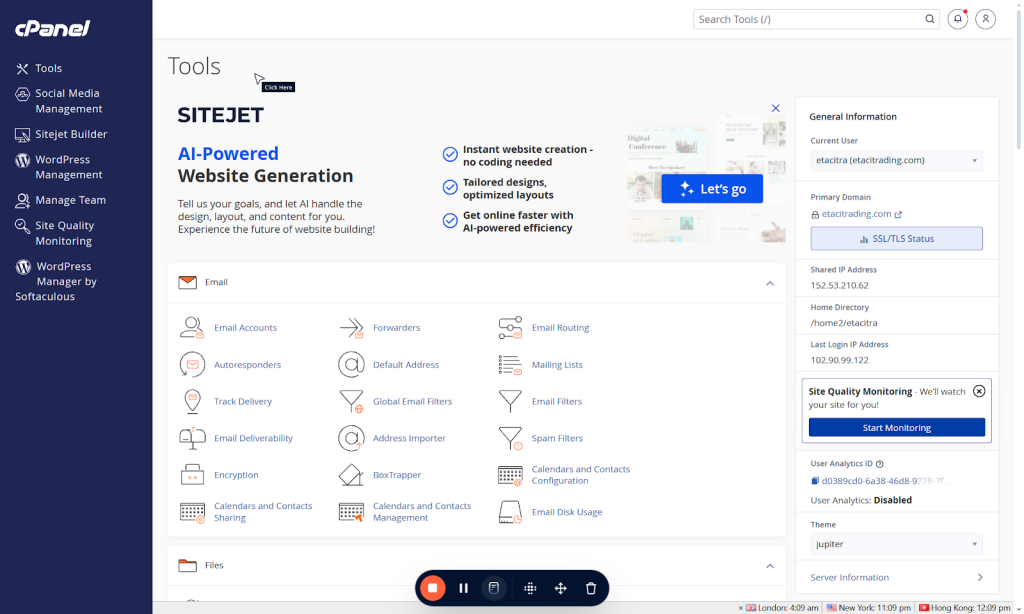
Use your hosting login credentials to access the cPanel dashboard.
2. Locate the PHP Version Tool
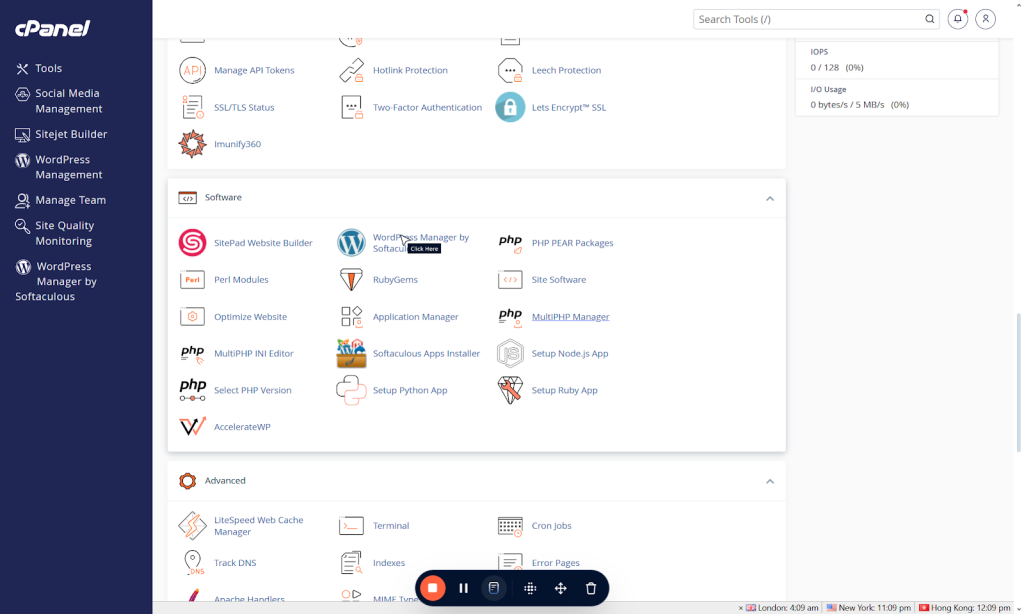
You can access it in two ways:
- Use the search bar, type “PHP” and select MultiPHP Manager
- Or scroll to the Software section and Click MultiPHP Manager.
3. Select Your Domain
Find the domain or subdomain you want to update.
You will see its current PHP version beside it (for example, PHP 5.4, PHP 7.4, or PHP 8.0).
Check the checkbox beside the affect domain name or sub domain name
4. Choose PHP 8.3 (Recommended)
From the PHP version dropdown:
- Select PHP 8.3 (ea-php83)
- You may also choose PHP 8.2 (ea-php82) depending on compatibility
5. Apply the Change
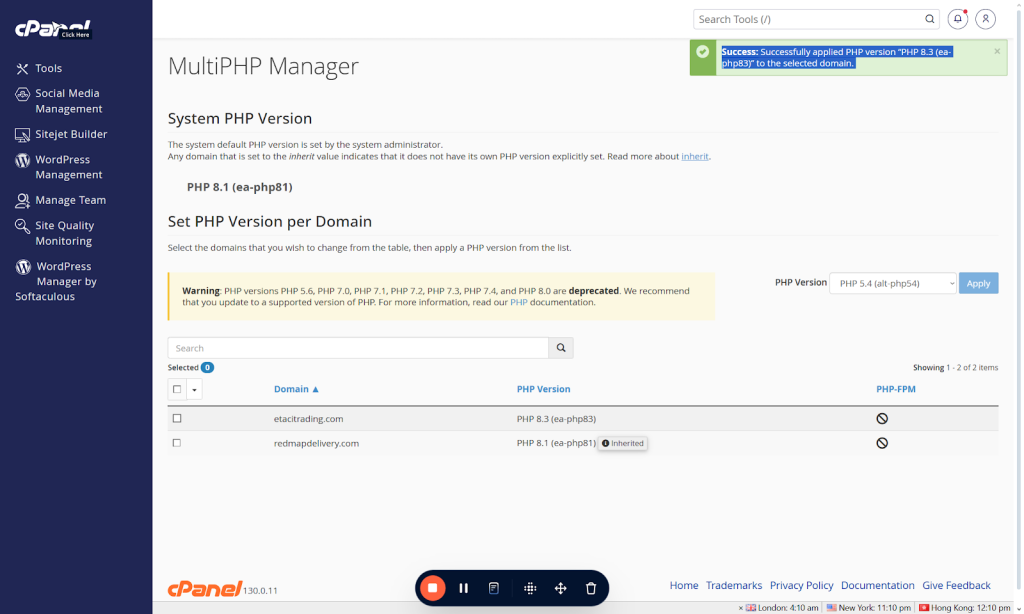
Click Apply to update the PHP version.
You should see a confirmation message:
“Successfully applied.”
Your domain is now running a modern PHP version compatible with Composer requirements.
After Updating PHP: What Next?
Once your server is on PHP 8.2+:
- Re-run your Composer command
- Clear caches if your app uses caching (e.g., Laravel, WordPress caching plugins)
- Reload the site to confirm everything works
Most installations or updates will now complete successfully.
Conclusion
Keeping your PHP version up to date is one of the easiest ways to avoid issues like this and keep your website running smoothly. At IsabiWP Cloud Nigeria, we always recommend using the latest stable PHP version for better speed, tighter security and full compatibility with modern WordPress plugins, WooCommerce stores and PHP applications. If you ever need help adjusting your PHP settings, troubleshooting Composer errors or optimizing your hosting environment, our team is always here to assist you. Just reach out and we’ll guide you step by step.
Leave a Reply